Memuat
Memuat
Want to go deeper?
Join one of our courses or ask us directly on WhatsApp.
Picked from the software, topic, and level of “Dynamo for Revit Intermediate #9: Logic and Element Filtering”.
Other ways we can help with Revit.
Learn with a mentor
Scheduled Architecture & CAD courses with live guidance and a certificate.

Course/Training Revit — Architectural Design with Revit 2019
★ 5.0 (8)

Course/Training Revit Architecture — Designing a 2-Story Building | BIM Specialist Architectural Design
★ 5.0 (6)

Course/Training Revit — Pencahayaan Revit Master Course
★ 5.0 (4)
Have it built for you
No time to learn Revit? Our team can do the project for you.

Development Service: Revit — Autodesk Revit Basic to Master
★ 5.0 (6)

Development Service: Autodesk Revit — Training Autodesk Revit Master Class Selama 3 Hari
★ 5.0 (5)

Revit BIM Creation Services
★ 5.0 (5)
Get notified about new Revit classes
At most one email a week. Unfollow anytime with one click.
The full narration of this video. The current sentence is highlighted while the video plays; click any sentence to jump there.
In this episode, we learn how to filter elements using logic. We will take only walls that are larger than 20 square meters. Let's start. Hello. In episode 9, we learn about logic and filtering in Dynamo.
Open Dynamo from the Manage tab in Revit, then click Launch Dynamo. Wait until the window opens.
On the initial page, click New to create an empty workspace. Comparison operators produce True or False.
The list 5, 12, 8, 20, 3 compared with greater than 8 results in False, True, False, True, False for each item.
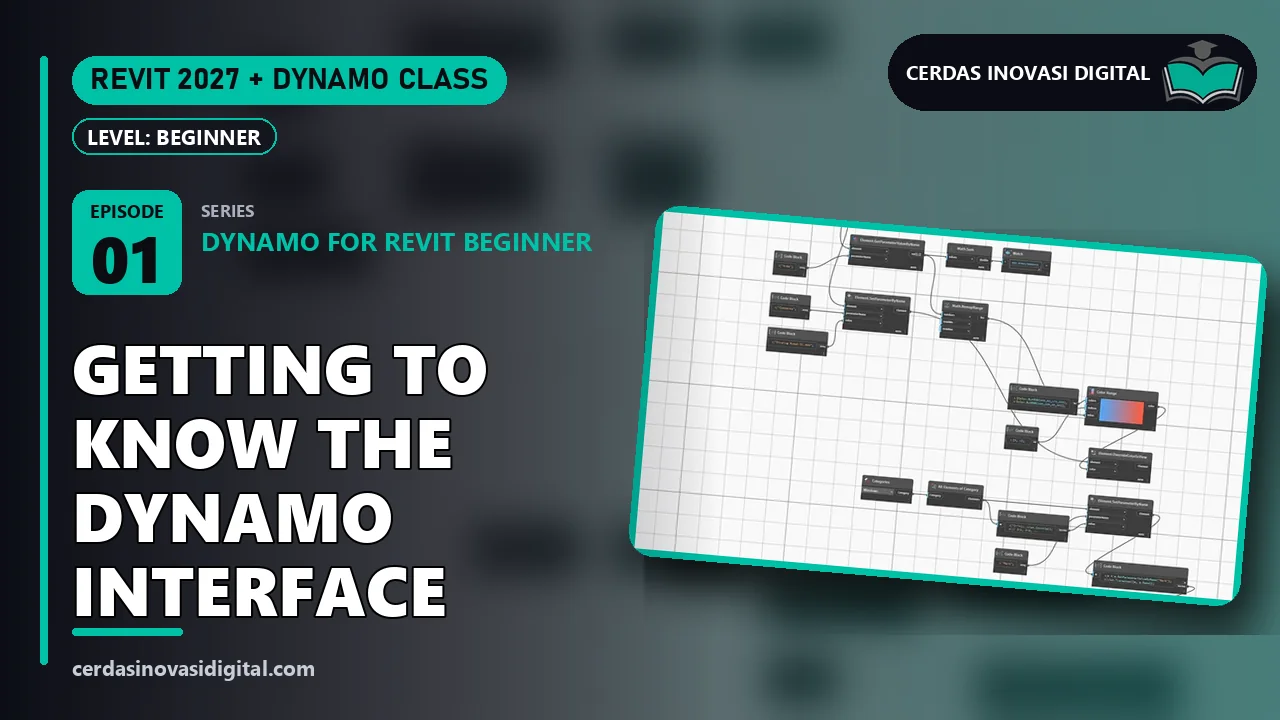
Take all walls, right-click, find Categories, select Walls, then All Elements of Category. Then read the area using Code Block Area and Node Get Parameter Value by Name. Create a Code Block containing A greater than 20.
Connect the area list to port A. The result is a list of True and False, called a Mask, where True represents walls larger than 20.
Add the node list.filter by Ball Mask. Connect the wall list and the Mask. The first output contains the walls that pass the filter. Connect it to Watch, and the number in the bottom right corner of Watch shows the count of walls larger than 20. Done.
You now know how to filter elements using logic. In the next episode, we will automatically number doors and windows. Goodbye. Want to master Dynamo and Revit? Cerdas Inovasi Digital offers Revit and Dynamo courses, BIM modeling and script creation services for Dynamo, as well as selling project files and Dynamo grabs from this tutorial series. Contact us via WhatsApp, or visit cerdasinovasidigital.com See you in the next episode.
Type a question or keyword; we find the part of this episode that explains it and jump the video there.
Notes are saved with the current video time and are only visible to you.
Stuck on a step? Ask here; the instructor and other learners can answer.
No questions yet.

Cerdas Inovasi Digital Team
Software developers, BIM & 3D engineers, and AI practitioners
We build software, BIM models, games and AI automations for clients every day, and turn that hands-on work into step-by-step classes: every step is shown on screen and comes with a PDF guide you can keep.
See our clients →