Memuat
Memuat
Want to go deeper?
Join one of our courses or ask us directly on WhatsApp.
Picked from the software, topic, and level of “Class Lighting Unreal Engine 5: Tutorial Lighting Unreal Engine 5: Lumen Day, Evening & Night + Neon Lights”.
Other ways we can help with Unreal Engine.
Learn with a mentor
Scheduled Game Development courses with live guidance and a certificate.

Course/Training Unreal Engine — Procedural Animation for Humans in Unreal Engine 5
★ 5.0 (60)

Course/Training Unreal Engine — Training Unreal Engine Master Class Selama 3 Hari - Kelas 2
★ 5.0 (7)

Course/Training: Unreal Engine 5
★ 5.0 (7)
Have it built for you
No time to learn Unreal Engine? Our team can do the project for you.

Development Service: Unreal Engine — Unreal Engine 4 – Build Your First Game with UE4!!
★ 5.0 (12)

Development Service: Unreal — Unreal Engine 5 Blueprints: Multiplayer Shooter (FPS)
★ 5.0 (10)

Development Service: Blender — Blender Character Design Master for Unity & Unreal Engine
★ 5.0 (9)
Get notified about new Unreal Engine classes
At most one email a week. Unfollow anytime with one click.
The full narration of this video. The current sentence is highlighted while the video plays; click any sentence to jump there.
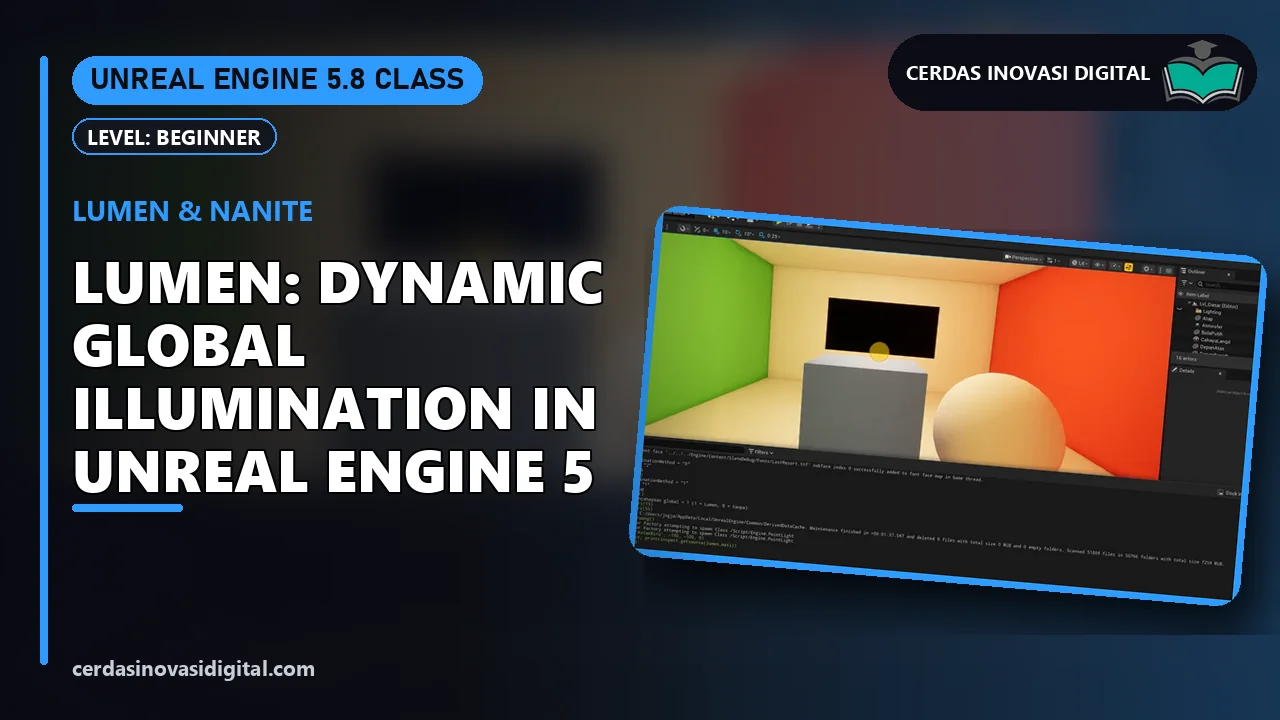
In this tutorial, we will set up the atmosphere for daytime, sunset, and nighttime using Lumen. Then, we will add lights and neon that illuminate the surroundings. Hello, welcome to Cerdas Inovasi Digital. In this tutorial, we will learn about Lumen lighting in Unreal Engine 5. We will change the atmosphere for daytime, sunset, and nighttime. Then, we will set up lights and glowing materials that illuminate the surroundings. Let's start! Create a new project from the TetherPersen template. Name it 'belajar lumen', then be creative. In an Unreal Engine 5 project, Lumen is already active by default. Lumen is a real-time global illumination system. Light bounces between surfaces, for example, the green color of the wall also affects the color of the floor nearby. Quick tip! Click via port, then hold Control and L while moving the mouse. The sun rotates and the sky changes instantly according to the sun's position. To get the values right, select the Directional Light in the Outliner, then change the Rotation Y to minus 50. This is daytime atmosphere, the sun is high and bright. Change the Rotation Y to minus 6. The sun is low on the horizon, the sky turns orange, and the shadows stretch long. This is the evening scene. Change Rotation Y to 12. The sun is below the Horizon, and the level becomes dark like night. Night needs lighting. Click Quick Add, Lights, then Pant Light, and place it near the stairs. Change Light Color to orange, Intensity 80, and Attenuation Radius 2000. See how Lumen reflects the orange light onto the walls and floors around it. Now we will create a material that emits its own light. Right-click in the Content Browser, select material, name it M underscore Neon. Open M underscore Neon, add a constant 3 vector, fill the values 0, 3, 30. Values above 1 make the color glow. Connect it to Emission V Color, not Base Color. Click Apply and Save, then close the material editor. Add a Cube from Quick Add as a neon pole, Then change skill 0, 3, 0, 3, 3. In element 0, select M underscore Neon. With Lumen, the blue light from the neon poles also illuminates the floor and walls around it, without the need for additional lights. Click Save All to save everything. Press Play and walk through the night scene. The orange light and blue neon create a dramatic atmosphere. Done. You have learned how to set up day, dusk, and night, place light sources, and create emissive materials with Lumen. Don't forget to subscribe, like, and share. Goodbye. Want to master game development with Unreal Engine? Cerdas Inovasi Digital offers a complete Unreal Engine course, game and 3D character creation services, as well as selling ready-to-use project files. Contact us via WhatsApp, or visit cerdasinovasidigital.com. Thank you for watching!
Type a question or keyword; we find the part of this episode that explains it and jump the video there.
Notes are saved with the current video time and are only visible to you.
Stuck on a step? Ask here; the instructor and other learners can answer.
No questions yet.

Cerdas Inovasi Digital Team
Software developers, BIM & 3D engineers, and AI practitioners
We build software, BIM models, games and AI automations for clients every day, and turn that hands-on work into step-by-step classes: every step is shown on screen and comes with a PDF guide you can keep.
See our clients →